
Real-time face swap on a local PC: GPU, FPS, webcam and privacy
Live face swap is a fixed time budget per frame. Understanding which stage spends that budget is what separates a usable preview from a slideshow.
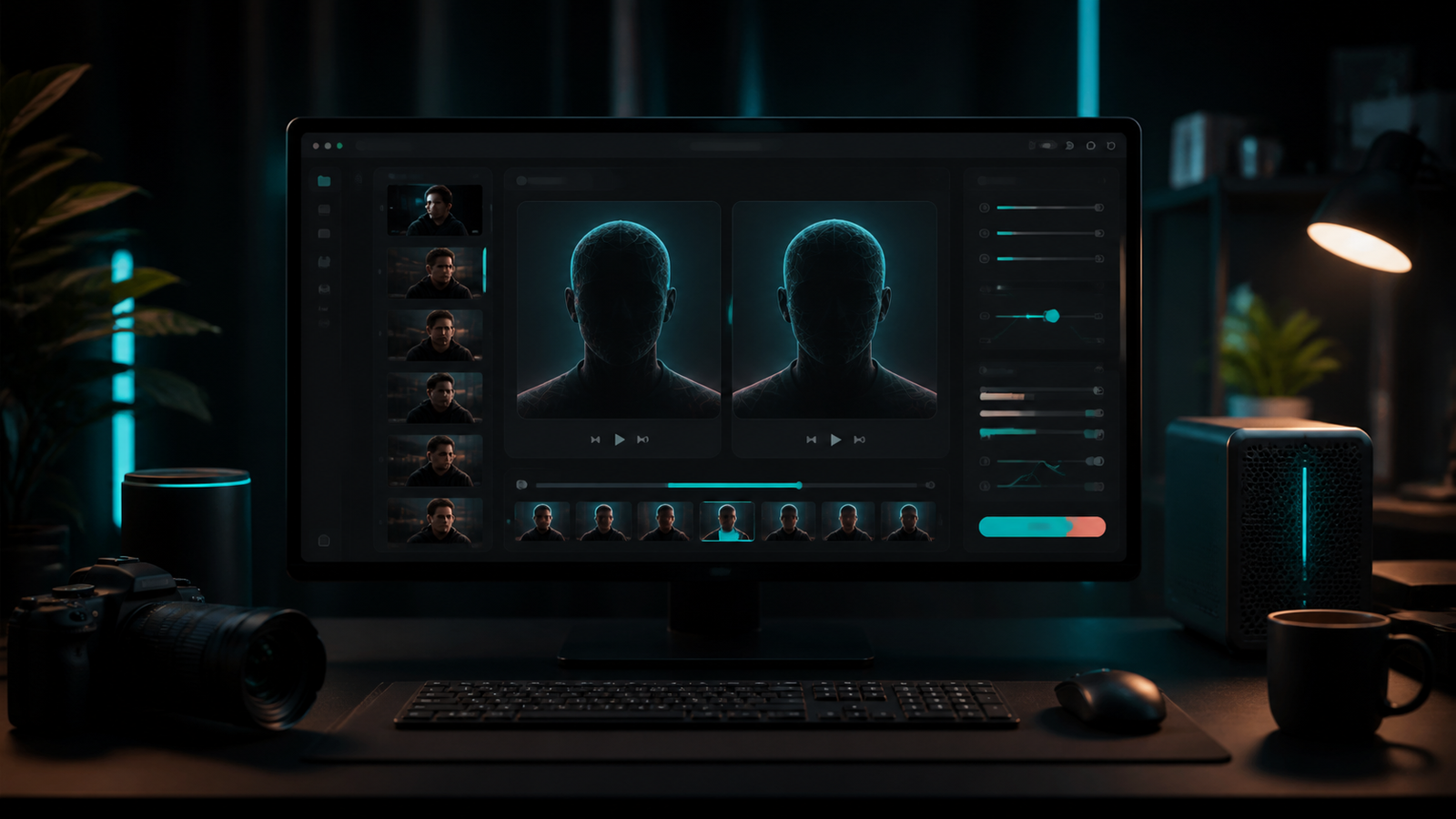
Short answer: real-time face swap runs the whole detect-swap-composite pipeline on every webcam frame, on your own machine. Frame rate is set by the slowest stage, hardware acceleration is what makes it viable, and face enhancement is usually the setting that costs you the most FPS.
A video export can take as long as it needs. A live preview cannot. At 30 FPS you have about 33 milliseconds per frame to capture, find faces, swap them, optionally repair them, and get the result on screen. Everything below follows from that constraint.
Before you go live
Use your own face or a source portrait you have clear permission to use, and be transparent that the camera image is altered. Do not use a live face swap for impersonation, fraud, bypassing identity verification, or harassment. See the responsible-use policy.
1. What happens to each webcam frame
The live path is a loop, and each stage in it has a cost:
- Capture. A frame is pulled from the camera at a requested resolution and frame rate.
- Detection and analysis. Faces in that frame are located and described, including the embedding used to decide who is who.
- Assignment. Each detected face is matched to a source face — either one default source for everyone, or the closest match among your mapped identities.
- Swap. The swap model runs once per source-target pair and the result is composited into the frame.
- Optional repair. If face enhancement is active and the runtime supports it live, a restoration pass runs per face.
- Display. The finished frame is encoded and streamed to the app window over a local loopback connection.
Two consequences follow immediately. First, the pipeline is per-face, not per-frame — two people in shot roughly doubles the swap and repair work. Second, the frame rate you see is set by the slowest stage, so chasing a faster camera will not help if the enhancer is the bottleneck.
2. Camera capture: what the app asks for versus what it gets
Deep Face Cam opens the camera targeting 960×540 at 60 FPS using MJPG, then reads back what the device actually delivered. That request is deliberate: 540p is a sensible live working resolution, and requesting MJPG at open time matters on Windows, where a webcam left on an uncompressed format can be bandwidth-limited to a handful of frames per second.
On Windows the app tries DirectShow first, then Media Foundation, then a generic fallback, because those backends enumerate cameras in different orders and not every device works equally well with each. On macOS it uses AVFoundation with a generic fallback.
The app also measures the real frame rate empirically rather than trusting what the driver reports, because the reported value is unreliable on DirectShow — a camera delivering 60 FPS commonly still reports 30. If you want to see the live number, turn on Show FPS in the options panel.
3. Execution providers: the setting that decides everything else
Inference runs through ONNX Runtime, and the execution provider it selects is the largest single factor in live performance. The backend detects what is available at startup and prefers, in order:
| Provider | Platform | Notes |
|---|---|---|
| CUDA | Windows, NVIDIA GPUs | Best NVIDIA performance, but sensitive to driver, CUDA, and cuDNN version compatibility. |
| ROCm | AMD compute stack | Preferred ahead of CoreML and DirectML when present. |
| CoreML | macOS, Apple silicon | Used instead of PyTorch MPS; may run across CPU, GPU, and Neural Engine depending on model partitioning. |
| DirectML | Windows | Broad GPU support across NVIDIA, AMD, and Intel. |
| CPU | Everywhere | Maximum compatibility, lowest speed. Workable for exports, hardest for live. |
Windows is packaged as separate CPU, DirectML, and CUDA builds from different dependency sets, so choosing the right installer is part of this decision rather than something you toggle later. On Apple silicon the app also writes generated CoreML cache files into your user model directory, which is why the first run of a model can be slower than the ones after it.
Live face enhancement has a runtime condition
Face repair during live preview is enabled when the runtime is using CUDA or DirectML. On other providers the live pipeline runs the face swapper alone, and the app states this in the options panel. Image and video generation can still use any enhancer. Details in the GFPGAN vs GPEN guide.
4. Where your FPS actually goes
When a live preview is too slow, work through the list in this order. It is sorted by how much time each item typically costs relative to how easy it is to change.
| Factor | Impact | First thing to try |
|---|---|---|
| Face enhancer | Highest. A full restoration pass per face, per frame. | Turn it off, or drop to the 256 model. |
| Number of faces | High. Swap and repair both run per face. | Frame the shot so only the needed faces are visible. |
| Execution provider | High. CPU-only live work is the hardest case. | Install the build that matches your GPU. |
| Capture resolution | Moderate. Affects detection and compositing cost. | Keep the live resolution modest; it is not the export. |
| Camera format | Moderate, and often invisible. An uncompressed format can throttle the device itself. | Confirm the reported capture rate with Show FPS. |
| Other GPU load | Varies. Games, encoders, and browsers compete for the same device. | Close other GPU-heavy applications during a live session. |
| Thermal limits | Gradual. Laptops throttle after several minutes. | Judge sustained FPS, not the first thirty seconds. |
Distinguish frame rate from latency. A preview can run at a comfortable frame rate and still feel delayed, because each frame passes through several stages and a buffer. If the delay is what bothers you, reduce per-frame work rather than resolution alone.
Frame budget, capture resolution and what to record
Live work is arithmetic before it is tuning. The per-frame budget is fixed by your target frame rate, and everything — capture, detection, assignment, swap, optional repair, display — has to fit inside it.
| Target frame rate | Time per frame | Left for detect, swap and repair |
|---|---|---|
| 15 FPS | 66.7 ms | ≈ 61 ms |
| 24 FPS | 41.7 ms | ≈ 37 ms |
| 30 FPS | 33.3 ms | ≈ 28 ms |
| 60 FPS | 16.7 ms | ≈ 12 ms |
The third column assumes roughly 5 ms for capture and display, which is an assumption rather than a measurement on your machine — treat it as the shape of the problem, not a specification.
| Capture resolution | Pixels per frame | Vs the 960 × 540 default |
|---|---|---|
| 640 × 360 | 230,400 | 0.44× |
| 960 × 540 | 518,400 | 1.00× |
| 1280 × 720 | 921,600 | 1.78× |
| 1920 × 1080 | 2,073,600 | 4.00× |
Detection and compositing scale with the pixels in the frame. Swap and repair scale with the number of faces. That is why raising capture resolution and adding a second person cost you in two different ways.
What to write down when you measure
| Field | Why it matters |
|---|---|
| OS and build variant | CPU, DirectML and CUDA are separate Windows builds; macOS differs by architecture. |
| Execution provider | The single largest factor, and it also decides whether live repair is available. |
| GPU and driver version | CUDA performance is sensitive to driver, CUDA and cuDNN compatibility. |
| Capture resolution | Sets the detection and compositing cost per frame. |
| Reported vs measured FPS | DirectShow commonly reports 30 for a camera delivering 60. |
| Faces in frame | Swap and repair are per face, so this multiplies the work. |
| Enhancer setting | Off / GPEN-256 / GPEN-512 / GFPGAN change the per-face cost by design. |
| Sustained FPS after 5 minutes | Laptops throttle; the opening thirty seconds are not the real number. |
5. Getting a live result that holds up
Live is less forgiving than a file render, because you cannot go back and fix a bad frame. Most of the quality comes from things you set before starting:
- Source portrait. Sharp, evenly lit, close to front-facing. The same rules as video, and they matter more here.
- Lighting. Even, frontal light beats a bright window behind you. Backlight is the most common cause of a live swap that keeps breaking up.
- Distance and framing. A face too small in frame gives detection less to work with.
- Movement. Fast head turns and hands crossing the face are the frames that fail; test them deliberately before you rely on the setup.
- Mirroring. The preview can be flipped horizontally, which affects how natural your own movements feel but not the output geometry.
For more than one person on camera, live assignment is a continuous similarity decision rather than a pre-analysed mapping, so it is inherently less stable than a mapped video file. The multi-face guide explains the difference and when to prefer the file workflow.
6. What a local preview is — and is not
This is worth stating plainly, because it is the most common wrong assumption about live face swap tools. Deep Face Cam displays the live result in its own preview window. It does not register a system-level virtual webcam device, so Zoom, Discord, OBS, and browsers do not see it in their camera lists.
If you need the output inside another application, that routing would have to come from separate screen or window capture software, with all the quality, latency, and platform caveats that implies. Do not assume it works until you have tested that specific chain yourself — and remember that presenting an altered camera feed as your genuine appearance in a meeting or verification flow is exactly the use the responsible-use policy prohibits.
7. Privacy: what stays local and what does not
"Local" and "offline" are not the same claim, and the difference matters most for a live camera feed.
- Core processing is on-device. Camera frames, the swap, and the preview are handled by a backend running on your machine.
- The preview travels over loopback. The bundled backend serves the processed frames to the app window over a local connection on 127.0.0.1 — it is an internal channel on your computer, not an upload.
- Models are fetched, once, with confirmation. Large model files are not shipped in the source repository. They are downloaded into your user directory after you confirm, and verified against a published checksum.
- Some network use remains. Installers, model downloads, documentation links, and any update checks use the network.
- Generated files stay on disk. Models, outputs, temporary files, and settings live in your per-user app data directory — worth knowing when you clean up after a session.
The honest recommendation is the same for any tool making this claim: test the exact build you plan to use, complete the first-run model download, then observe its behaviour before you point it at anything sensitive. See the privacy notes for how this app is designed.
Live troubleshooting
| Symptom | Likely cause | What to check |
|---|---|---|
| Camera does not open | Another app holds the device, or a backend mismatch. | Close other camera apps; on Windows the app falls back across DirectShow, Media Foundation, and a generic backend. |
| Very low capture rate | Camera negotiated an uncompressed format. | Enable Show FPS and compare against the camera's rated frame rate. |
| Enhancer option unavailable in live | Runtime is not CUDA or DirectML. | Check the provider; enhancement still works for image and video exports. |
| Face drops out on turns | Detection loses a far-from-frontal face. | Improve lighting and framing; test the movement range before relying on it. |
| Wrong face on the wrong person | Live assignment is similarity-based per frame. | Reduce the number of people in shot, or use the file workflow. |
| FPS falls after a few minutes | Thermal throttling. | Measure sustained frame rate, not the opening seconds. |
| First run much slower | Model load and, on Apple silicon, CoreML cache generation. | Warm up once, then measure. |
FAQ
Do I need a GPU for real-time face swap?
A CPU path can run the pipeline, but live is where acceleration matters most, because every frame has a fixed time budget. On Windows there are separate CPU, DirectML, and CUDA builds for this reason; on Apple silicon the app uses the CoreML provider.
Can I use it as my webcam in Zoom, Discord, or OBS?
Not directly. The app shows the result in its own preview window and does not register a system virtual camera device, so other applications will not list it as a camera input.
Why is my live FPS lower than my camera's rated FPS?
Because capture is only the first stage. Detection, assignment, swapping, optional repair, and display all have to fit inside the same frame budget, and the slowest one sets the pace.
What resolution should I run live?
Lower than your export. The app targets 960×540 for capture by default, which is a reasonable working point for a preview; there is no benefit in feeding a 4K stream through a real-time pipeline.
Does live face swap upload my camera feed?
The core processing runs on your machine and the preview moves over a local loopback connection. Network access is still used for confirmed model downloads and links, so check the behaviour of the exact build you install.
Can two people use live face swap at once?
Yes, but assignment is decided by similarity on each frame rather than from a pre-analysed map, so it is less stable than a mapped video render — treat it as a preview.
Set up live once, then measure it
Pick the build that matches your GPU, turn on Show FPS, and test with the enhancer off before you decide what your machine can sustain.
Related guides and references
- GFPGAN vs GPEN: which face enhancer should you use?
- How to swap multiple faces in a video locally
- How to face swap a video locally on PC or Mac
- Deep Face Cam vs DeepFaceLive — live-first tooling compared
- How to face swap a GIF locally without uploading it
- Local face swap software for PC and Mac
- Deep Face Cam source repository
- Deep Face Cam privacy notes