
How to face swap a GIF locally without uploading it
A GIF is an animation in an image container, and face swap tools treat those two things differently. Once you know that, the local route is short and completely repeatable.
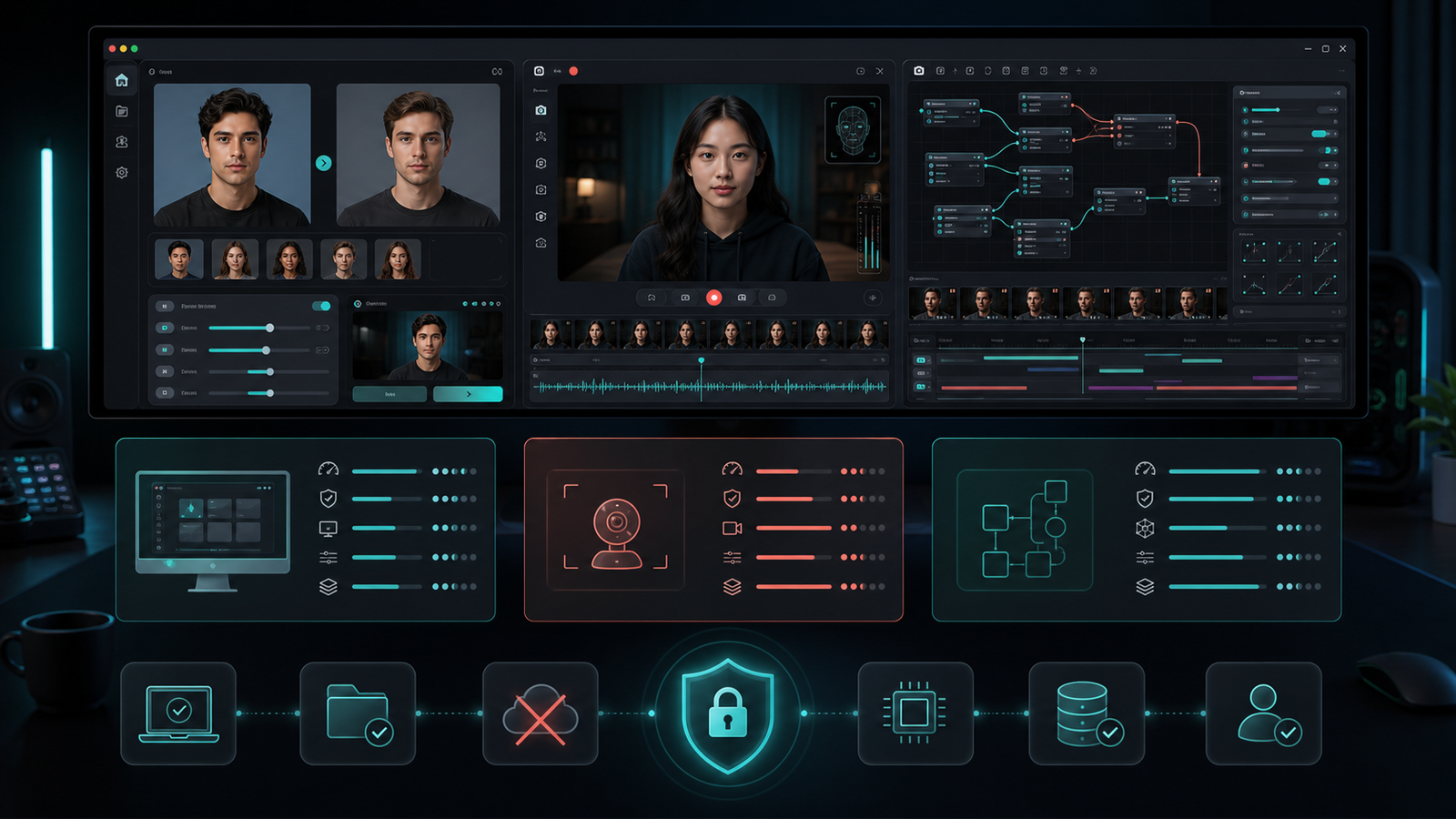
Short answer: convert the GIF to MP4, run the face swap on the video, then rebuild a GIF from the result. Everything stays on your machine, and the two conversion steps are single ffmpeg commands. Doing it this way also gives you a better-looking GIF than most online GIF face swap sites return, because you control the palette and frame rate yourself.
What Deep Face Cam does with GIF today
Be clear about the current state before you start. The image picker accepts .gif,
but the image path treats it as a single still frame. Image export formats are PNG, JPG and
BMP; video export is MP4 or MKV. Animated GIF import and export are not available in
the current build, so there is no one-click GIF mode yet. The route below is the
reliable local workflow until native animated GIF handling ships.
1. Why a GIF is not simply "a short video"
GIF looks like video and behaves like an image file. That mismatch is the whole reason this needs a workflow rather than a button.
- It is an image container. Tools that route files by extension will often hand a GIF to their still-image path and process frame one.
- Its palette is capped at 256 colours per frame. That limit is in the format itself, and skin gradients are exactly what palette quantisation handles worst.
- It has no audio track, so nothing is lost by moving through MP4 and back.
- It is inefficient. A ten-second GIF can be many times the size of the same clip as H.264.
- Frame timing is per frame, which is why a converted GIF often does not have one clean frame rate until you set one.
None of this is a problem once the GIF is temporarily an MP4. The face swap then behaves exactly like any other short video, with the same tuning and the same review pass described in the local video face swap guide.
Before you begin
Use your own media or material you have clear permission to alter — reaction GIFs are usually footage of a real, identifiable person. Decide how the result will be labeled as altered, and do not use face swap for impersonation, harassment, or non-consensual intimate imagery. See the responsible-use policy.
2. The local GIF workflow, end to end
Five steps, two of them ffmpeg one-liners. Deep Face Cam ships an ffmpeg binary with its
desktop builds for its own video pipeline; the commands below run ffmpeg directly from a
terminal, so install it separately if it is not already on your PATH.
- Convert the source GIF to MP4.
- Load the MP4 as the target in the app and set your source face.
- Export the swapped video and review it before converting back.
- Generate a colour palette from the swapped video.
- Encode the final GIF using that palette.
3. The exact commands
Step 1 — GIF to MP4. The scale filter forces even dimensions, which H.264 with yuv420p requires:
ffmpeg -i input.gif -movflags faststart -pix_fmt yuv420p \
  -vf "scale=trunc(iw/2)*2:trunc(ih/2)*2" input.mp4
Step 2 — face swap. Open the app, add your source portrait, set
input.mp4 as the target, and export. Nothing about this step is GIF-specific; if the
clip has more than one person in it, use the mapping workflow from the
multi-face guide.
Step 3 — generate a palette from the swapped result, so the GIF gets colours matched to this clip rather than a generic table:
ffmpeg -i swapped.mp4 \
  -vf "fps=15,scale=480:-1:flags=lanczos,palettegen=stats_mode=diff" \
  -y palette.png
Step 4 — encode the GIF with that palette. Keep the fps and scale values identical to step 3:
ffmpeg -i swapped.mp4 -i palette.png \
  -lavfi "fps=15,scale=480:-1:flags=lanczos,paletteuse=dither=bayer:bayer_scale=5:diff_mode=rectangle" \
-y output.gif| Parameter | What it controls | Practical advice |
|---|---|---|
fps=15 | GIF frame rate, and therefore frame count. | The single most effective size control. 12–15 is usually enough for a reaction GIF. |
scale=480:-1 | Output width; height follows automatically. | Halving the width cuts pixel count to a quarter. |
flags=lanczos | Resampling quality when scaling. | Keep it; the cost is negligible at GIF sizes. |
palettegen=stats_mode=diff | Weights the palette toward areas that change between frames. | Good default for a moving face on a static background. |
dither=bayer:bayer_scale=5 | Ordered dithering pattern strength. | Smaller files and less frame-to-frame noise than error-diffusion dithering. |
diff_mode=rectangle | Re-encodes only the changed rectangle per frame. | Meaningful savings when the background is still. |
4. Frame count is the cost, and you choose it
A face swap is charged per frame, and a GIF's frame count is duration multiplied by frame rate. That is why setting the frame rate before the swap — not after — is worth doing:
| Clip | Frame rate | Frames to process | Model passes (1 face, enhancer on) |
|---|---|---|---|
| 3 s | 12 FPS | 36 | 108 |
| 3 s | 15 FPS | 45 | 135 |
| 5 s | 15 FPS | 75 | 225 |
| 5 s | 24 FPS | 120 | 360 |
| 10 s | 15 FPS | 150 | 450 |
| 10 s | 30 FPS | 300 | 900 |
The last column counts one detection, one swap and one enhancement pass per frame. Add a second person and the swap and enhancement columns double, exactly as described in the multi-face guide. Since GIFs are short, this is normally fast — but it also means there is no reason to swap 300 frames when the finished GIF will only show 150 of them.
5. Getting a GIF that still looks like a face
The 256-colour limit is where GIF face swaps go wrong, and it has nothing to do with the swap model. Skin is a smooth gradient, and quantising a smooth gradient produces visible bands.
- Generate the palette from the swapped clip, not from the original. The face is what changed.
- Crop tighter before converting if the GIF has a busy background. Fewer competing colours means more of the palette spent on the face.
- Keep enhancement conservative. A heavily smoothed face loses the texture that survives quantisation best — see the enhancer guide.
- Do not upscale on the way out. A 480px GIF from a 320px source only adds file size.
- Judge the GIF, not the MP4. The intermediate video will always look better; the GIF is the deliverable.
6. Why doing this locally matters more for GIFs than you think
Online GIF face swap tools require an upload, and a GIF is rarely neutral material. Reaction GIFs are clips of real people, often taken from film, television, or someone's personal video. Sending that to a web service means handing a third party both the original footage and the altered result, under whatever retention policy applies that day.
The workflow above never leaves your machine: ffmpeg runs locally, the swap runs locally, and the output lands in a folder you chose. Model downloads and installers still use the network — that distinction is covered in the privacy notes and in the real-time guide.
Troubleshooting
| Symptom | Cause | Fix |
|---|---|---|
| Only the first frame was processed | The GIF went through an image path rather than a video path. | Convert to MP4 first; do not load the GIF itself as the target. |
| Conversion fails on dimensions | H.264 with yuv420p needs even width and height. | Use the trunc(iw/2)*2 scale filter shown above. |
| Banding and blotches on skin | 256-colour palette quantisation. | Regenerate the palette from the swapped clip, crop tighter, reduce width. |
| Output GIF is enormous | Too many frames, too wide, or dithering too aggressive. | Lower fps, lower scale, keep diff_mode=rectangle. |
| Animation plays too fast or too slow | Source GIF had irregular per-frame delays. | Set an explicit fps filter in both palette and encode steps. |
| Colours shift between frames | Dithering noise across a per-frame palette. | Use ordered (bayer) dithering rather than error-diffusion. |
| Face flickers | A swap-quality problem, not a GIF problem. | Fix it in the video stage; a GIF will only make it more obvious. |
FAQ
Can Deep Face Cam face swap an animated GIF directly?
Not in the current build. The picker accepts .gif, but the image path treats it as a
still frame, and exports are PNG, JPG or BMP for images and MP4 or MKV for video. Use the
GIF → MP4 → swap → GIF route above until native animated GIF support ships.
Do I lose quality by going through MP4?
Practically no. H.264 at a reasonable quality setting is far more faithful than the 256-colour GIF you started with and the 256-colour GIF you will end with. The palette step, not the MP4 step, is where quality is decided.
How do I keep the GIF under a size limit?
Frame count, width and palette handling drive size, in that order. Lower the frame rate, trim
the clip, reduce the width, and keep ordered dithering with diff_mode=rectangle.
Can I face swap a GIF with several people in it?
Yes — once it is an MP4 it is an ordinary multi-face job. Map each person to their own source face before rendering, as described in the multi-face guide.
Is a GIF face swap slower than a video face swap?
Usually much faster, because GIFs are short. A five-second GIF at 15 FPS is 75 frames, where a one-minute 30 FPS video is 1,800.
Does this work on both Windows and macOS?
Yes. The ffmpeg commands are identical apart from shell line-continuation characters — use
^ instead of \ in Windows Command Prompt, or put each command on a
single line.
Keep the GIF, and the original, on your own machine
Convert, swap, and rebuild locally — no upload, and you control the frame rate and palette that decide how the result actually looks.
Related guides and references
- How to face swap a video locally on PC or Mac — the swap stage in detail
- How to swap multiple faces in a video locally — GIFs with more than one person
- GFPGAN vs GPEN: which face enhancer should you use? — why heavy enhancement hurts GIFs
- Real-time face swap on a local PC
- Local face swap software for PC and Mac
- ffmpeg filter documentation — palettegen and paletteuse
- Deep Face Cam privacy notes