
How to swap multiple faces in a video locally
Multi-face video is two problems, not one: deciding who gets which face, and keeping that decision stable while people cross, turn away, and re-enter the shot.
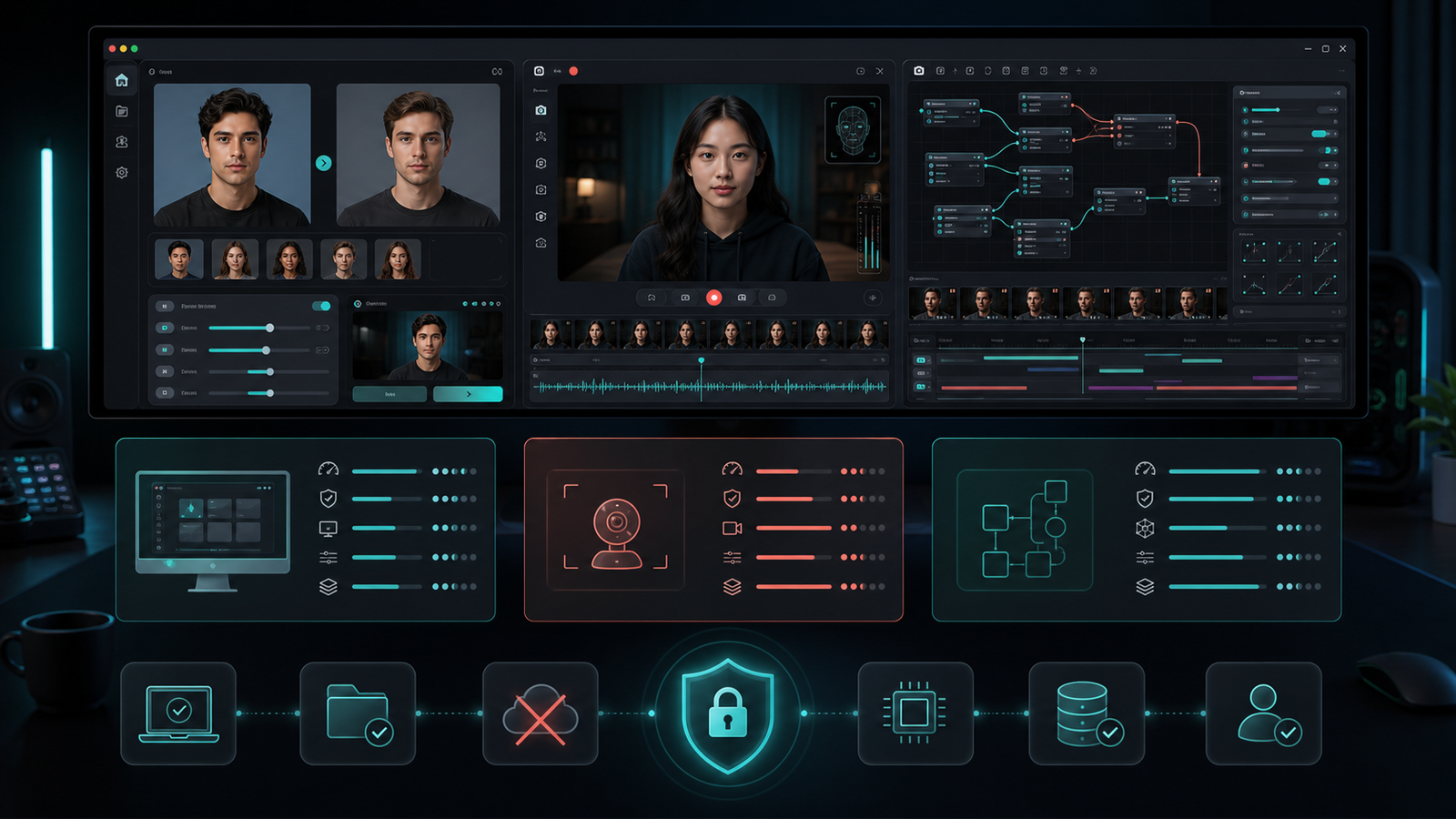
Short answer: a local desktop face swap app handles a group video in one of two modes. Either one source face replaces every detected face, or you map each person in the shot to their own source portrait. The second mode is what most people mean by “multiple face swap,” and it needs a mapping confirmation step before the render, not after.
Single-face footage is forgiving. There is one face to find, one identity to track, and one blend to tune. A group shot changes all three. The detector now returns several faces per frame, the app has to decide which detected face belongs to which mapped identity, and that decision has to survive occlusion, profile turns, and cuts. When people talk about a multi-face swap “going wrong,” they usually mean the assignment moved, not that the blending failed.
Consent scales with the number of people
A group clip needs permission from every identifiable person in it, not only from whoever recorded it or appears in the foreground. Decide before you start how the output will be labeled as altered, and do not use face swap for impersonation, fraud, identity verification, harassment, or non-consensual intimate imagery. See the responsible-use policy.
1. Two different things people call “multi-face swap”
Before touching any settings, be clear about which result you want. Deep Face Cam exposes these as two separate controls under Advanced options → Faces, and they are mutually exclusive by design.
| Control | What it actually does | Use it when |
|---|---|---|
| Swap all faces | Processes every detected face in the frame using the same default source face. | You want one identity applied to a crowd, or a quick pass where per-person accuracy does not matter. |
| Map faces manually | Pairs each detected target face with its own source face. The mapping step opens before generation and turns Swap all faces off. | Two or more people each need a different face — the real multi-person case. |
This is the single most common setup mistake: enabling “swap all faces” and expecting per-person results. That mode has exactly one source face and applies it everywhere. If you need person A to become one face and person B another, you need manual mapping.
2. Prepare one source portrait per identity
Every mapped identity needs its own source image, and each of them should meet the same bar you would use for a single-face swap: sharp, evenly lit, close to front-facing, no sunglasses, no heavy hair occlusion, no aggressive beauty filter. A weak source portrait does not average out in a group shot — it just makes one person in your video look worse than the others.
Keep the source images visually distinct from each other where you can. If two source portraits are similar in framing, crop, and lighting, a mismatch is much harder to spot when you review the export.
For the target, pick a short test segment rather than the finished cut. A good multi-face test segment contains at least one moment where subjects overlap or pass in front of each other, one profile turn per person, and one shot change.
3. Confirm the mapping before you render
With manual mapping enabled, the app analyses the target and opens a mapping step before generation starts. This is the checkpoint that saves the most time. Verify there that every target face you care about has a source assigned, and that the pairs are the ones you intended — not simply that the screen shows some faces.
For image and video targets, the mapping is built against faces found in the target media, and for video the app tracks which faces belong to which frame. That is why a video mapping is worth confirming on a representative segment: the mapping is only as good as the faces the analysis actually found.
Live camera work is different. There is no target file to pre-analyse, so a live session matches faces frame by frame using face embeddings and picks the closest match for each mapped identity. It is a similarity decision made continuously, which is exactly why live multi-person mapping is less stable than a mapped video file. If you need reliable per-person results, prefer the file workflow and treat live multi-face as a preview. The real-time face swap guide covers the live pipeline in detail.
4. Identity switching: why the faces trade places
The most reported multi-face failure is a face landing on the wrong person for a few frames. It is not random. Assignment is driven by detection plus similarity, so it degrades in specific, predictable situations:
- Crossing: two subjects overlap and one face is partly hidden, so detection briefly returns fewer or shifted faces.
- Profile turns: a face rotated far from frontal produces a weaker match than the person standing next to them.
- Re-entry: someone walks out of frame and comes back; nothing guarantees they get the same assignment as before.
- Look-alikes: similar age, hairstyle, glasses, or lighting narrows the gap between two identities.
- Cuts: a shot change replaces the whole scene, and the new shot is matched on its own terms.
- Distance: a small background face has far less detail to match on than a foreground close-up.
Practical mitigations, in the order worth trying: cut the clip at shot boundaries and process each shot separately; exclude background faces you do not actually need by not mapping them; re-confirm the mapping after any re-entry; and use clearly distinct source portraits so a mistake is visible immediately.
5. Multi-face rendering costs more, roughly per face
A frame with four mapped faces is not the same work as a frame with one. Each source-target pair is run through the swap model separately and composited onto the frame in sequence, so processing time in a given frame scales with the number of faces being swapped in it — not with the video's resolution alone.
Face enhancement compounds this, because the enhancer also runs per face. Enabling HD repair on a four-person shot means four enhancement passes per frame on top of four swaps. If a multi-face render is unexpectedly slow, the enhancer setting is usually the first thing to check, not the swap itself.
| Factor | Effect on a multi-face render | What to do |
|---|---|---|
| Faces per frame | Swap work grows roughly linearly with mapped faces. | Map only the people who need swapping. |
| Face enhancer | Runs once per face, on top of the swap. | Test with the enhancer off, then add it back. |
| Execution provider | CPU is the slowest path; GPU backends differ per platform. | Match the build to the machine — see the enhancer guide. |
| Clip length | Errors found late cost the whole render. | Always validate on a short segment first. |
| Temporary frames | Video processing works through extracted frames on disk. | Keep free space available and use a dedicated output folder. |
Render cost by number of faces
Detection runs once per frame. Swapping and enhancement run once per face. That makes the arithmetic straightforward, and it is the arithmetic — not the resolution — that explains most multi-face render times.
| Mapped faces in frame | Detection | Swap passes | Enhancer passes (if on) | Model passes per frame | Swap + repair work |
|---|---|---|---|---|---|
| 1 | 1× | 1 | 1 | 3 | 1.0× |
| 2 | 1× | 2 | 2 | 5 | 2.0× |
| 3 | 1× | 3 | 3 | 7 | 3.0× |
| 4 | 1× | 4 | 4 | 9 | 4.0× |
| 6 | 1× | 6 | 6 | 13 | 6.0× |
The last column counts swap and enhancement only, because detection is charged per frame rather than per face. Wall-clock time on top of this depends on your execution provider, capture or source resolution, and which enhancer is selected.
6. Review the export for assignment, not just quality
A single-face review asks “does this look right?” A multi-face review asks “is this the right face on the right person, in every shot?” Those are different passes and they need different attention.
Scrub the export specifically at crossings, at each shot change, and at every point where someone enters or leaves frame. Watch those moments at normal speed first — a one-second identity swap is often invisible frame by frame and obvious at playback speed. Then check blending quality separately.
Keep the test export, the mapping you used, the app version, and the model versions in your project notes. If a correction is needed later, that record turns guesswork into a repeat.
Common multi-face mistakes
- Using “swap all faces” when each person needed a different source.
- Rendering the full clip before confirming the mapping on a test segment.
- Mapping every detected face, including background extras nobody needed swapped.
- Using two near-identical source portraits, which hides assignment errors.
- Processing a multi-shot edit as one file instead of per shot.
- Judging the result frame by frame and missing a short identity switch.
- Collecting consent from one person in a group clip and assuming it covers everyone.
FAQ
Can I swap two different faces in the same video?
Yes. That is what manual face mapping is for: each detected target face is paired with its own source portrait, so two people in the same shot can receive two different faces. The “swap all faces” toggle cannot do this, because it applies a single default source everywhere.
How many faces can be swapped at once?
The mapping is built from the faces the detector finds in your target, so the practical limit is set by detection quality and processing time rather than a fixed number. Small, distant, or heavily occluded faces are the first to be unreliable, and every added face increases render time.
Why does the wrong face appear on the wrong person?
Because assignment depends on detection and similarity, and both weaken during crossings, profile turns, re-entries, and cuts. Split the clip at shot boundaries, map fewer faces, and use visually distinct source portraits.
Does multi-face swapping need a GPU?
A CPU path can work, but multi-face work is where the difference shows most, since the cost is multiplied by the number of faces per frame. Match your build and execution provider to the hardware you actually have.
Can I do multi-face swapping on a live camera?
A live session can handle more than one person, but it matches faces continuously by similarity rather than from a pre-analysed file, so assignment is less stable than a mapped video render. Use it as a preview, and use the file workflow when the result matters.
Map the faces before you render the group shot
Confirm every source-to-target pair on a short segment, keep the footage on your own machine, and export only after the assignment holds through crossings and cuts.
Related guides and references
- How to face swap a video locally on PC or Mac — the single-face workflow this guide builds on
- GFPGAN vs GPEN: which face enhancer should you use? — enhancer cost per face
- Real-time face swap on a local PC — how live multi-person matching differs
- How to face swap a GIF locally without uploading it — the GIF route uses this same mapping step
- Local face swap software for PC and Mac — choosing a tool
- Deep Face Cam source repository
- Deep Face Cam responsible-use policy